Workspace Settings
Workspace settings in Flowplayer OVP define the defaults for all videos and livestreams in a workspace, such as embedding options, access rules, video processing, transcription and livestream defaults. The settings page also holds the workspace API key and custom metadata fields.
Table of contents
Workspace info
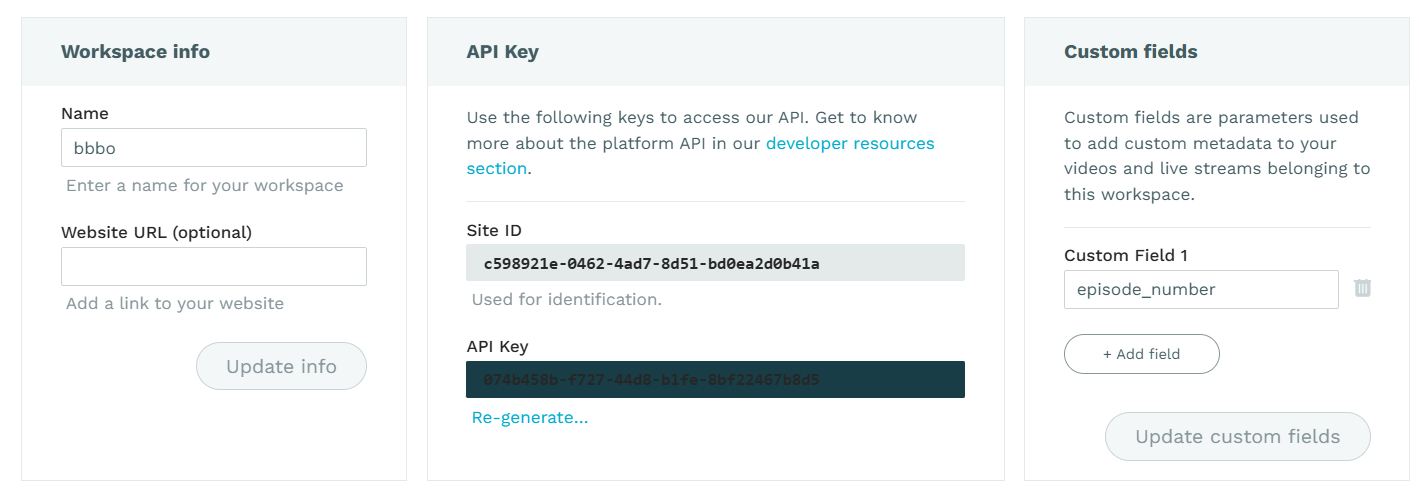
This section holds the name of the Workspace and optionally the url of your website.
API key
In the API key section you can find the ID of your Workspace (also called Site ID) and the API key; you'll need this information to perform API requests.
If you want to rotate your API key or think it might be compromised, you can also generate a new key through the Re-generate... link.
Custom fields
Custom fields define additional metadata records for your videos and livestreams belonging to this workspace. You can add, rename and remove fields.
Settings
In the main settings section you will define defaults for the workspace.
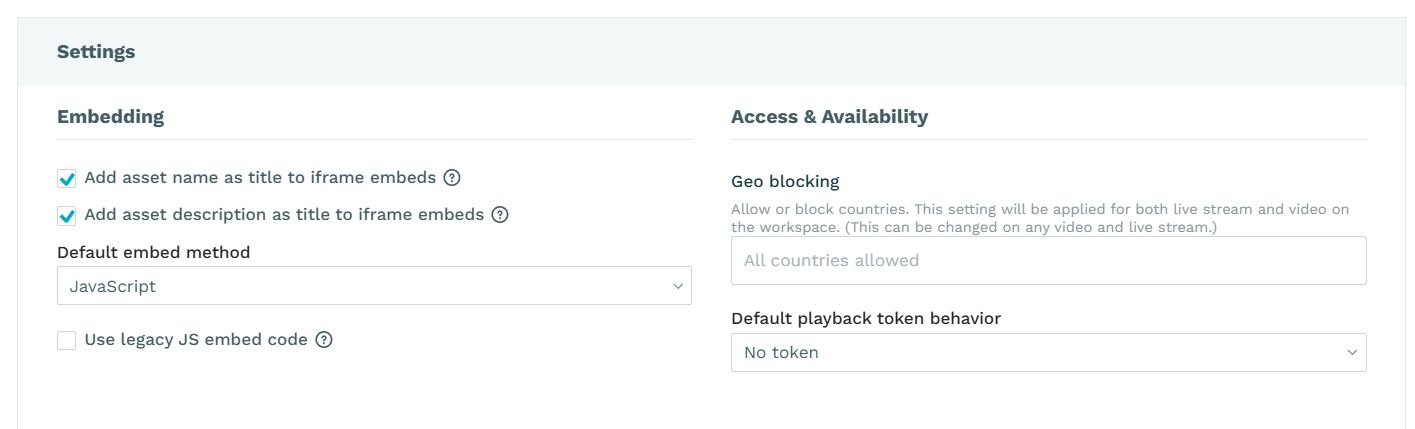
Embedding
-
- Checkbox or dropdown
- Effect
-
- Add asset name as title to iframe embeds
- On iframe embeds, the name of the asset is added as the 'title' attribute of the iframe. Good for accessibility.
-
- Add asset description as title to iframe embeds
- On iframe embeds, the description of the asset is added as the 'title' attribute of the iframe. Good for accessibility.
-
- Default embed method
- Select whether iframe or Javascript should be the default method presented in the "Share video/livestream" dialogues.
-
- use legacy JS embed code
- If checked, the old async player embed codes are generated instead of the modern ESM embeds. Not recommended.
If you check both iframe options, name and description will be combined into the iframe title, with the description inside parentheses.
Access & Availability
In the access and availability settings you can predefine geo blocking behavior for all VODs and livestreams on a workspace. The setting can be overridden in each video or live asset.
You can also define the default basic or advanced playback token behavior.
Video Processing
-
- Checkbox or dropdown
- Effect
-
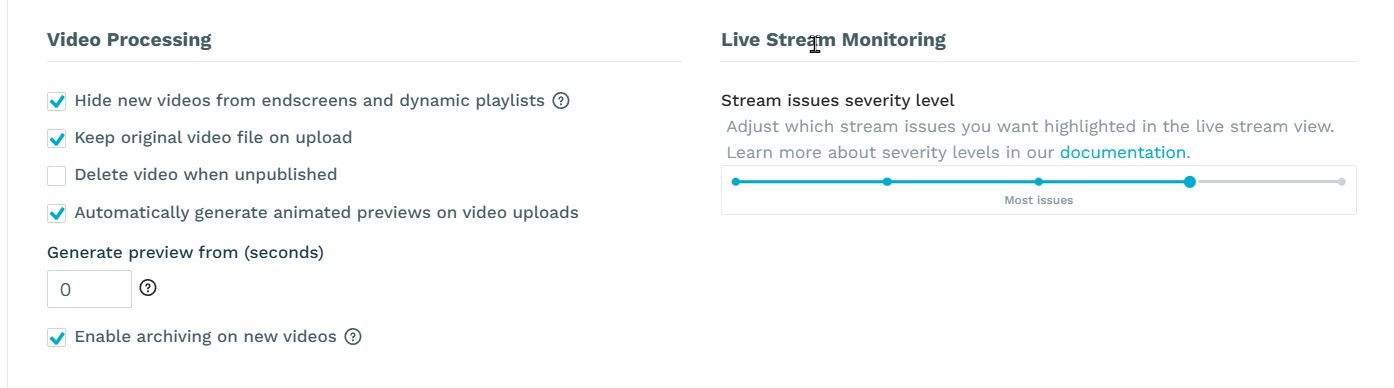
- Hide new videos from endscreens and dynamic playlists
- If set, new videos will not be added to any endscreens or dynamic playlists. Useful if you don't want your viewers to play a video before you have reviewed it and/or changed its metadata. This setting can be changed for each individual video. Note this setting will also exclude videos from MRSS feeds.
-
- Keep original video file on upload
- If set, we will store the uploaded original file as-is. Useful if you don't want to keep your own backup and in case the video needs to be re-encoded in the future (to use new streaming technologies, other codecs etc); this will add to your monthly storage costs.
-
- Delete video when unpublished
- If selected, all files for a video clip will be deleted on unpublish (manually, through the API or if you set an unpublish time). Use with care as any unpublish action will unrecoverably remove the video.
-
- Automatically generate animated previews on video uploads
- If active, all new video uploads will receive an animated preview clip (
WebPandMP4). You can set a default offset in seconds from where the preview clip should be created.
-
- Enable archiving on new videos
- This setting will set the archive flag on all new videos, so they will be moved to an archive storage after approx. 180 days of inactivity (and save storage costs). A small low-res version of the video will be kept and if played, the archived full resolution video will be restored (this can take up to 12 hours). This applies to all new videos uploaded after the setting is done; previous videos can still be set to archive manually in the asset metadata.
Live Stream Monitoring
The live stream monitoring setting defines the severity of errors reported on the livestream management pages. "All issues" would also report minor issues which could help improve your setup, but also becomes noisy.
Below is a list of the errors reported, counting up by severity. Level 5 will only show the errors mentioned, while each lower level will add the listed errors to the UI error log.
-
- Level
- Errors shown
-
- 5 (only most severe issues)
- There is no input detected on the ingest endpoint, or there are multiple audio channels (currently only 1 channel is supported)
-
- 4 (fewer issues)
- There is an issue with the timecodes of the ingest not advancing (usually a problem with the ingesting encoder)
-
- 3 (moderately severe issues)
- The input bitrate is very low, or the video/audio timecodes in the input are way out of sync
-
- 2 (most issues)
- The input framerate does not match industry standards
-
- 1 (all issues)
- The input keyframe interval is wrong or fluctuating
Please see the livestream error handling docs for further details.
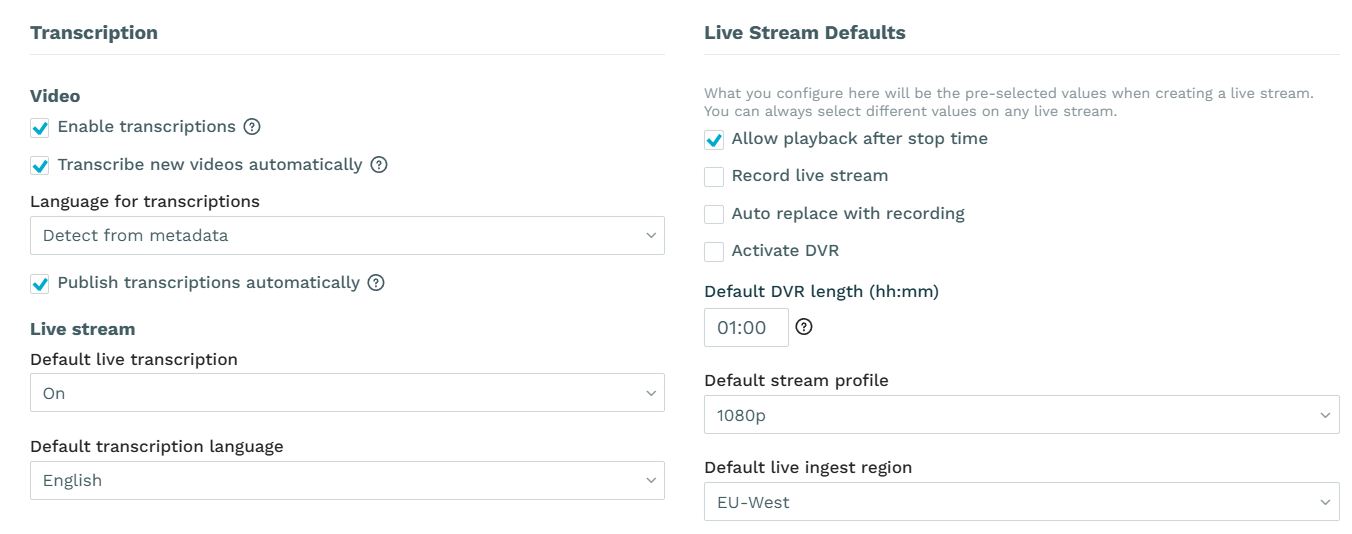
Transcription
Video
-
- Enable transcriptions
- If selected, you and other users on this workspace will be able to transcribe the audio track of uploaded videos to
WebVTTsubtitle tracks.
-
- Transcribe new video automatically
- If set, your videos will automatically be transcribed on upload.
-
- Default language for transcriptions
- If "Transcribe new video automatically" is set the default language will be used for transcription. If set to "Detect from metadata" the platform will try to determine the language using the input video's audio track
languagemetadata. If no such metadata exists, it will default to English.
Live stream
-
- Default live transcription
- If selected, all livestreams created in this workspace will be transcribed by default. Can be overridden in the individual livestream settings.
-
- Default transcription language
- The default language used for AI transcriptions. Can be overridden in the individual livestream settings.
Transcriptions are available in Enterprise plans
Attention: make sure your videos are not marked as "exclude from endscreens and dynamic playlists" if you want to show them in dynamic playlists or MRSS feeds.
Live Stream Defaults
What you configure here will be the pre-selected values when creating a livestream. You can always select different values on any livestream.
-
- Option
- Effect
-
- Allow playback after stop time
- If set, a stream will continue to show after the scheduled stop time (useful, for example, for games which run longer than scheduled)
-
- Record livestream
- If set, we will by default create a recording of all livestreams done through our platform (does not apply to remote streams!). See also the create VOD assets documentation.
-
- Auto replace with recording
- If set, the recording will replace the livestream automatically in the player once the stream has ended. Your viewers will see the recording if they start the player after the end of the live transmission. See also the create VOD assets documentation.
-
- Activate DVR
- When active, viewers will be able to seek back to previous segments of a livestream.
-
- Default DVR length
- Lets you define the length of the DVR window, i.e. the timespan a viewer can seek back in the live asset. Default is 60 minutes, the minimum 1 minute and the maximum is 12 hours.
-
- Default stream profile
- Here you can select the default quality profile to be used in livestreams
-
- Default live ingest region
- Select the default ingest region (EU-WEST or US-EAST) closest to your encoder.
Default poster
The default poster image will be used as poster for livestreams where no poster image is selected. You can always select different values on individual livestream creation.
Use the Select new poster image button to upload a new default image. Or pick one from the image gallery.