Getting started with VOD in Flowplayer OVP
Getting a video on your site with Flowplayer OVP takes five steps: upload the video, configure a player, optionally set up advertising, embed the video, and review its performance in analytics.
Table of contents
1. Uploading a video
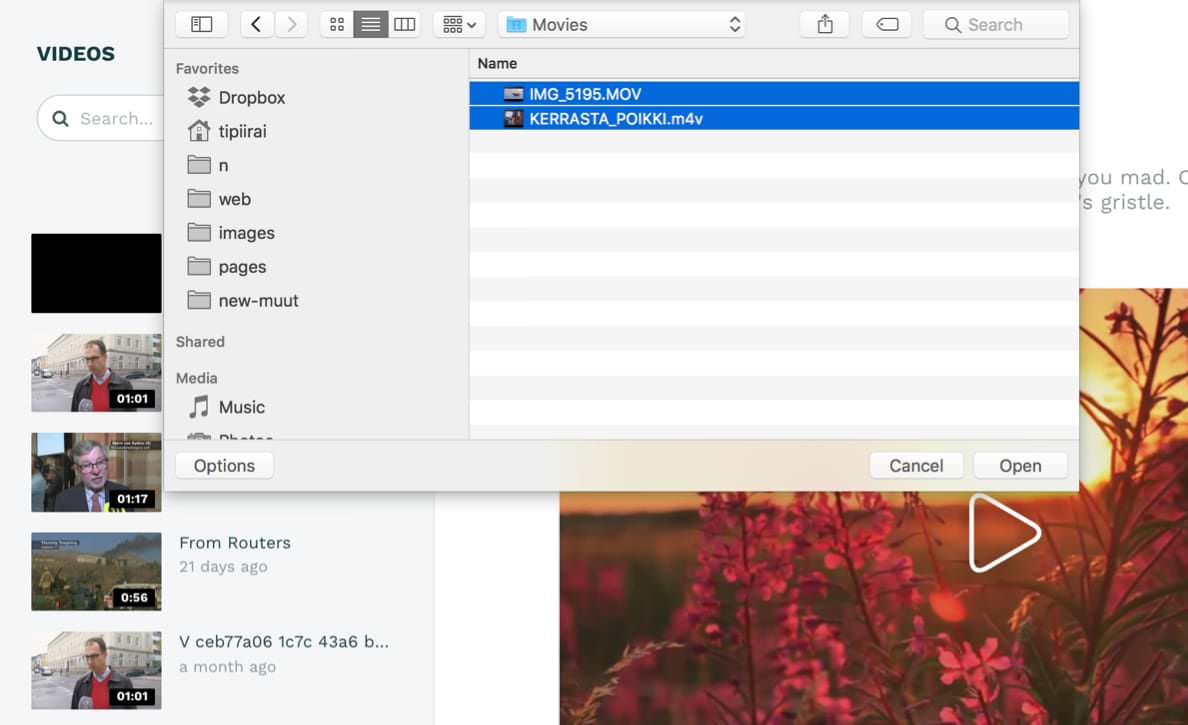
Go to the Videos area and hit the Add videos button:
2. Configure a player
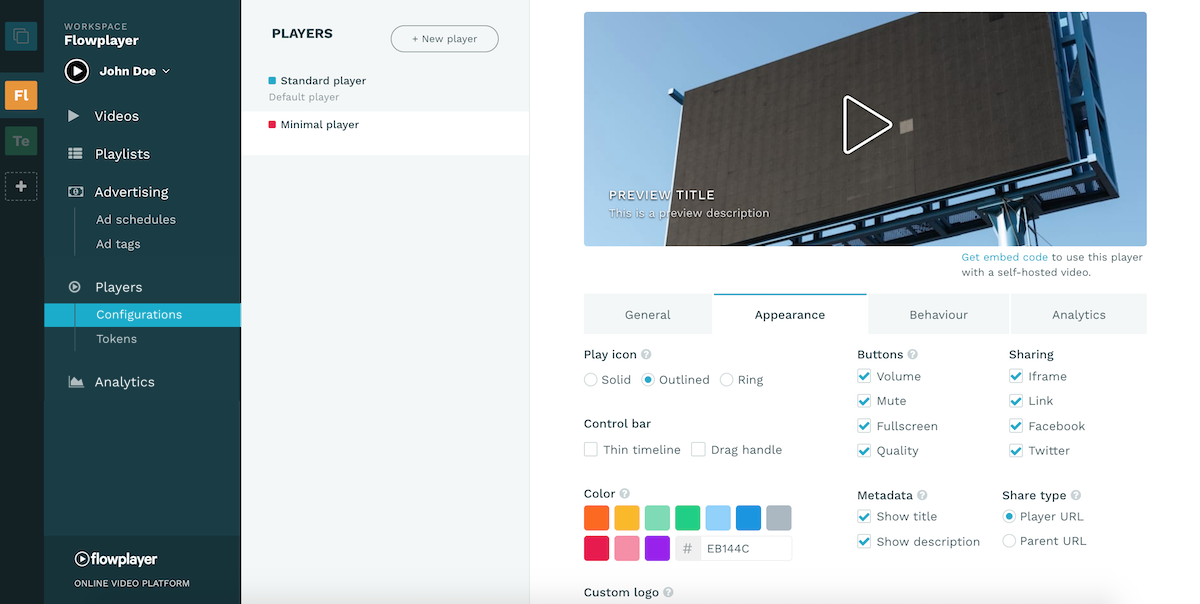
The next thing is to configure a player that matches your site, or some specific area on your site. Please hit Players from the sidebar:
3. Setup advertising
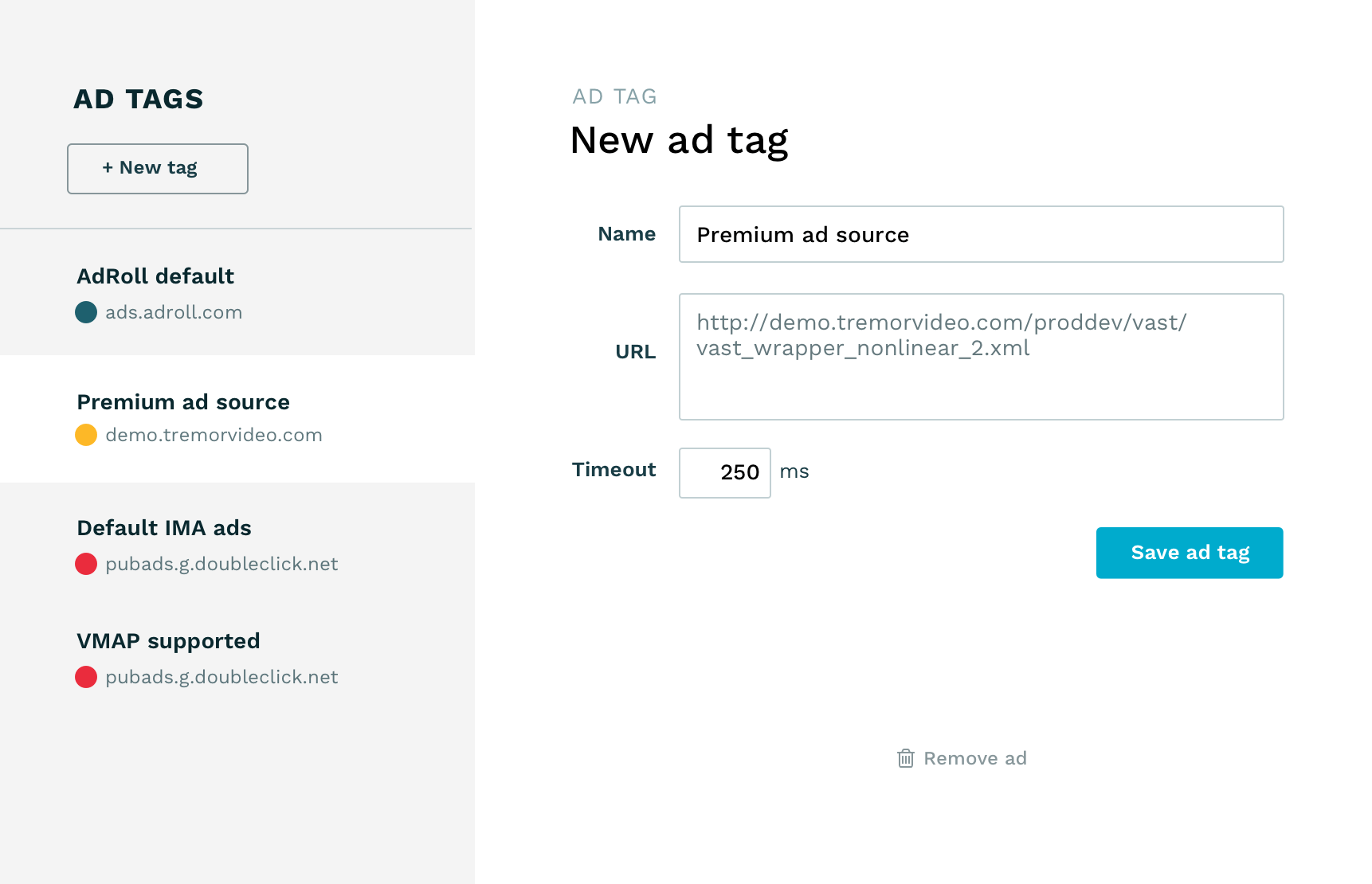
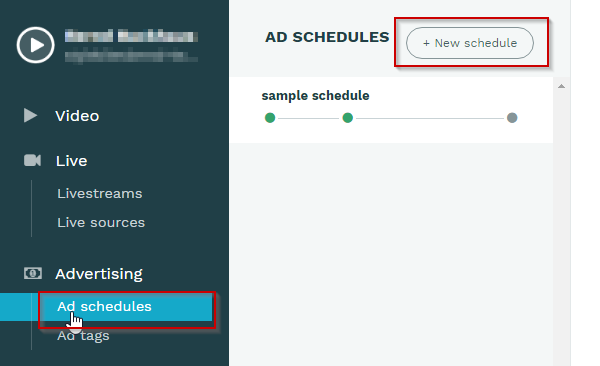
The next thing you might want is to configure advertising. You can create an ad schedule from a list of configurable ad tags. Head on to Advertising area from the sidebar:
4. Embed the video
Now we can embed the video on your website. Please select the correct video and hit the Share video button:
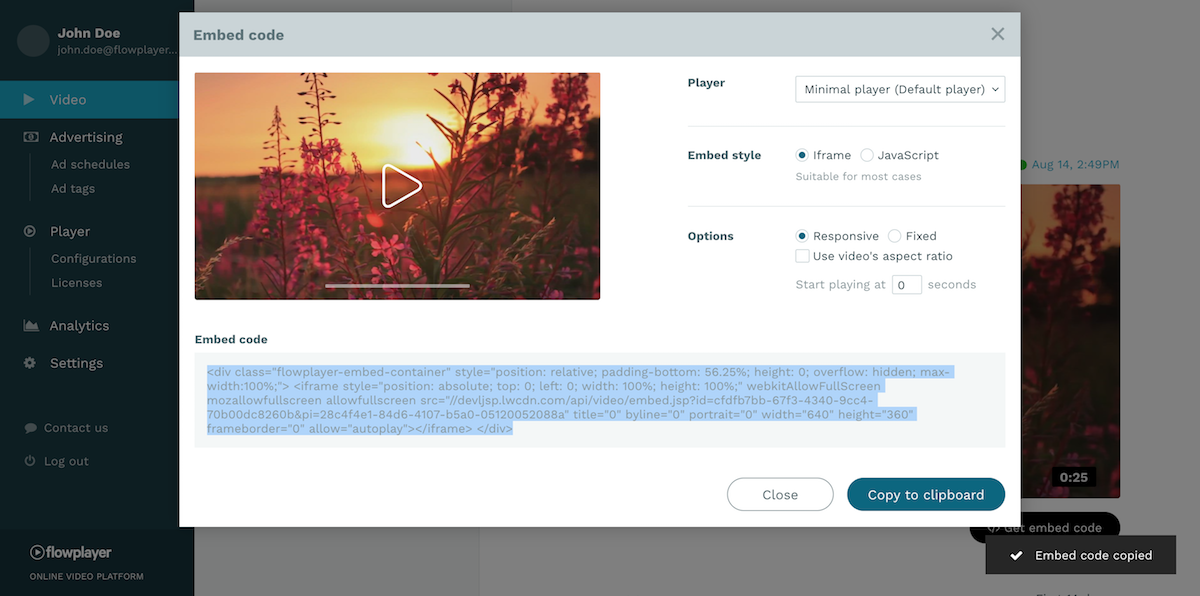
Your player configuration and ad schedule are now available there as options.
Let's play
Here's the above video in action
5. View analytics
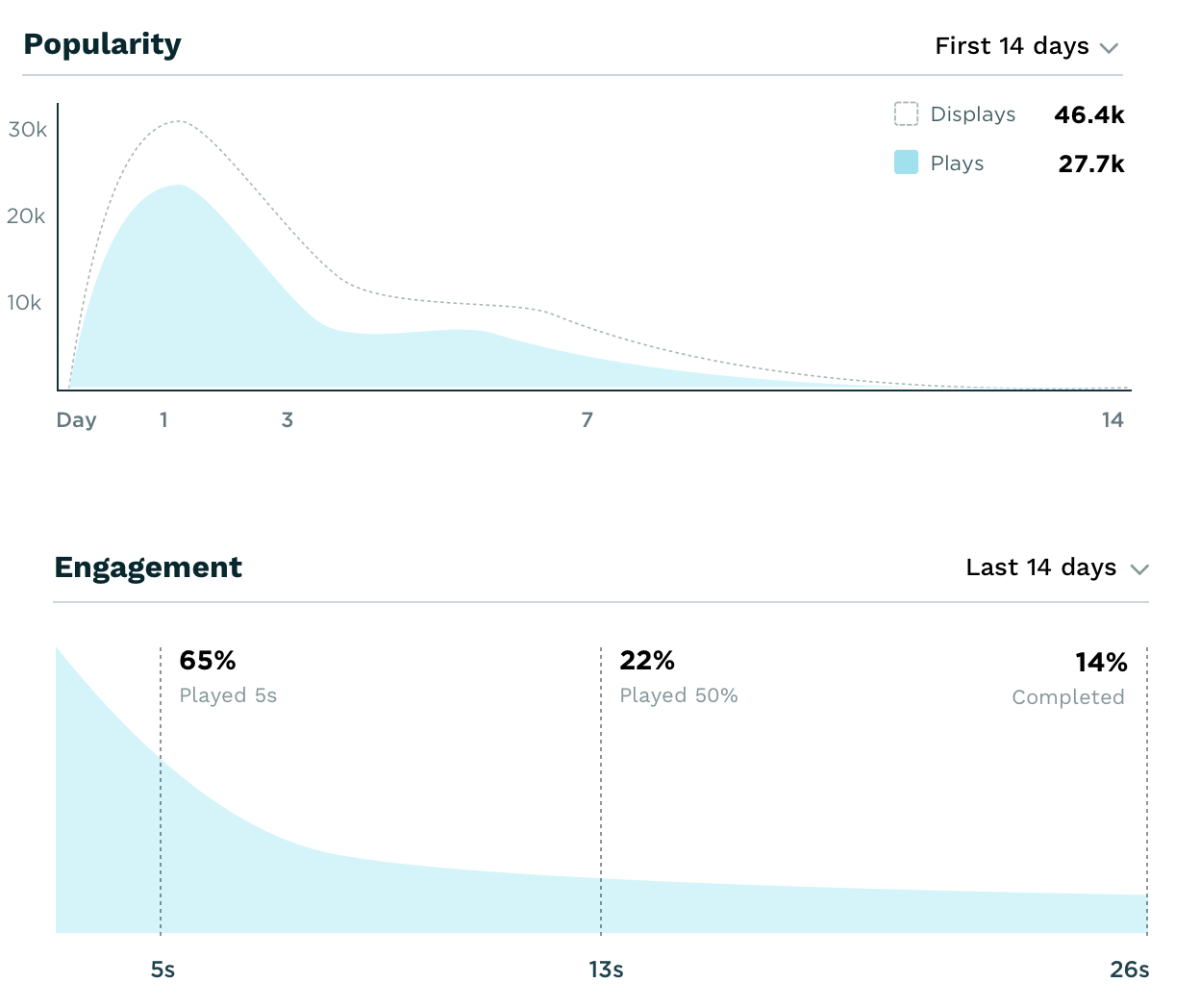
Next, we can check the Analytics of the video:
6. Self-hosted videos (optional)
You can alternatively host videos on your servers and still take advantage of advertising, player configurations, and analytics. To do that create a remote video asset or grab the embed code just like in above, but choose the "JavaScript" embed style. Then import only the player configuration and point your video with the src option like this:
<div id="player-1"></div>
<script type="module">
  import flowplayer from "https://embed.flowplayer.com/<player id>.js";
  flowplayer("#player-1", {
    src: "<your video path>"
  });
</script>
For details on the src attribute, please check the video source documentation