Video details view
The video details view in Flowplayer OVP is the page for a single video or audio asset, with a preview player, action links, metadata and analytics.
You can access the details view by clicking on any asset in your Videos list.
Table of contents
Information elements
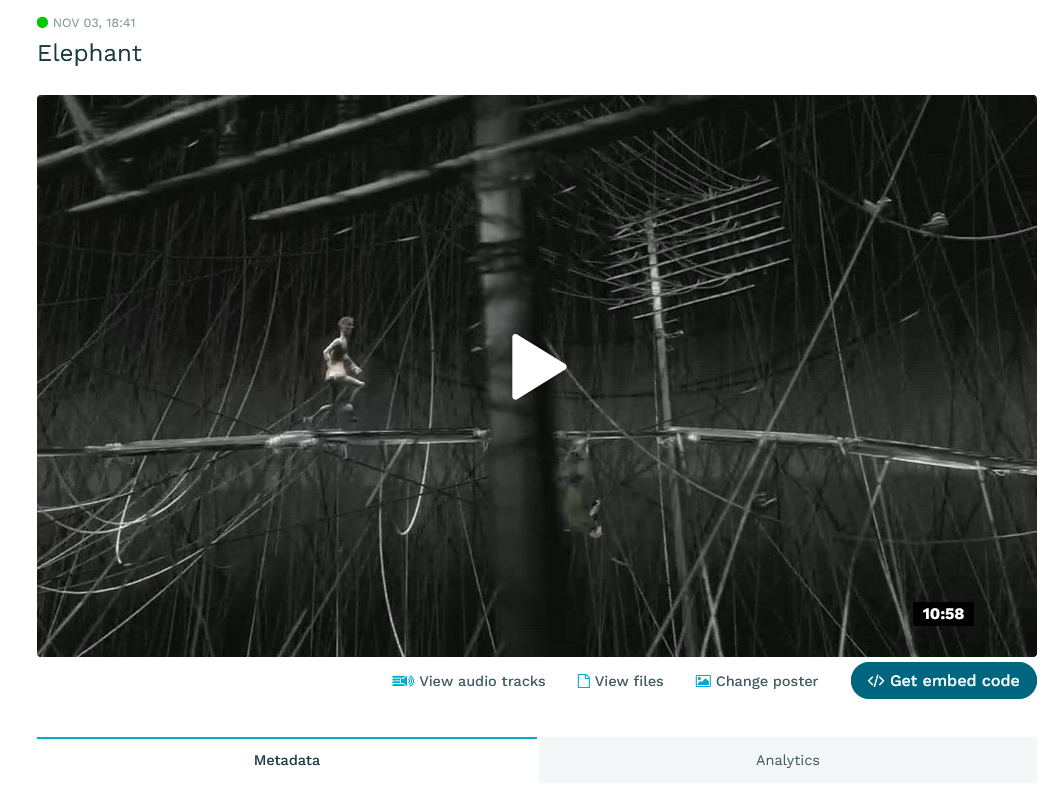
The header will show the data already displayed in the Videos list: publish status and time as well as the title.
Below the header is the preview player which allows you to check your content. It will also show DRM-protected material.
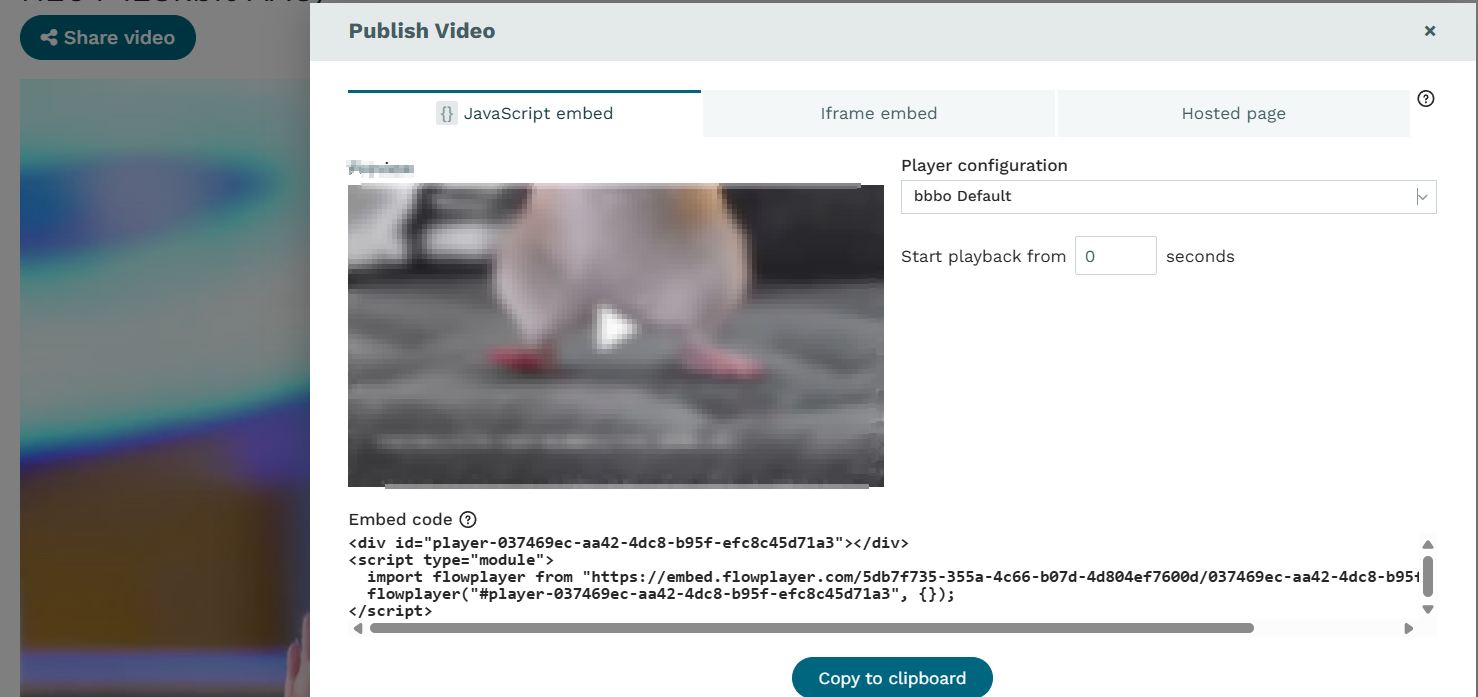
Above the preview player, you will find the Share video button used select an embed method and copy the code or share link url.
Action elements
Below the preview player you'll find several action links allowing you to perform the following operations (availability will depend on subscription type and the uploaded content).

-
Create clip: trim the video, cut a clip out of it, or stitch several videos together, saved as a new video or replacing the original.
-
View audio tracks: if your uploaded original contained multiple audio tracks, you can invoke a list of available transcoded tracks here. Not visible for videos with a single audio track.
-
Manage Files: allows you to see the stored original and encoded files/variants with file size as well as the urls on the CDN.
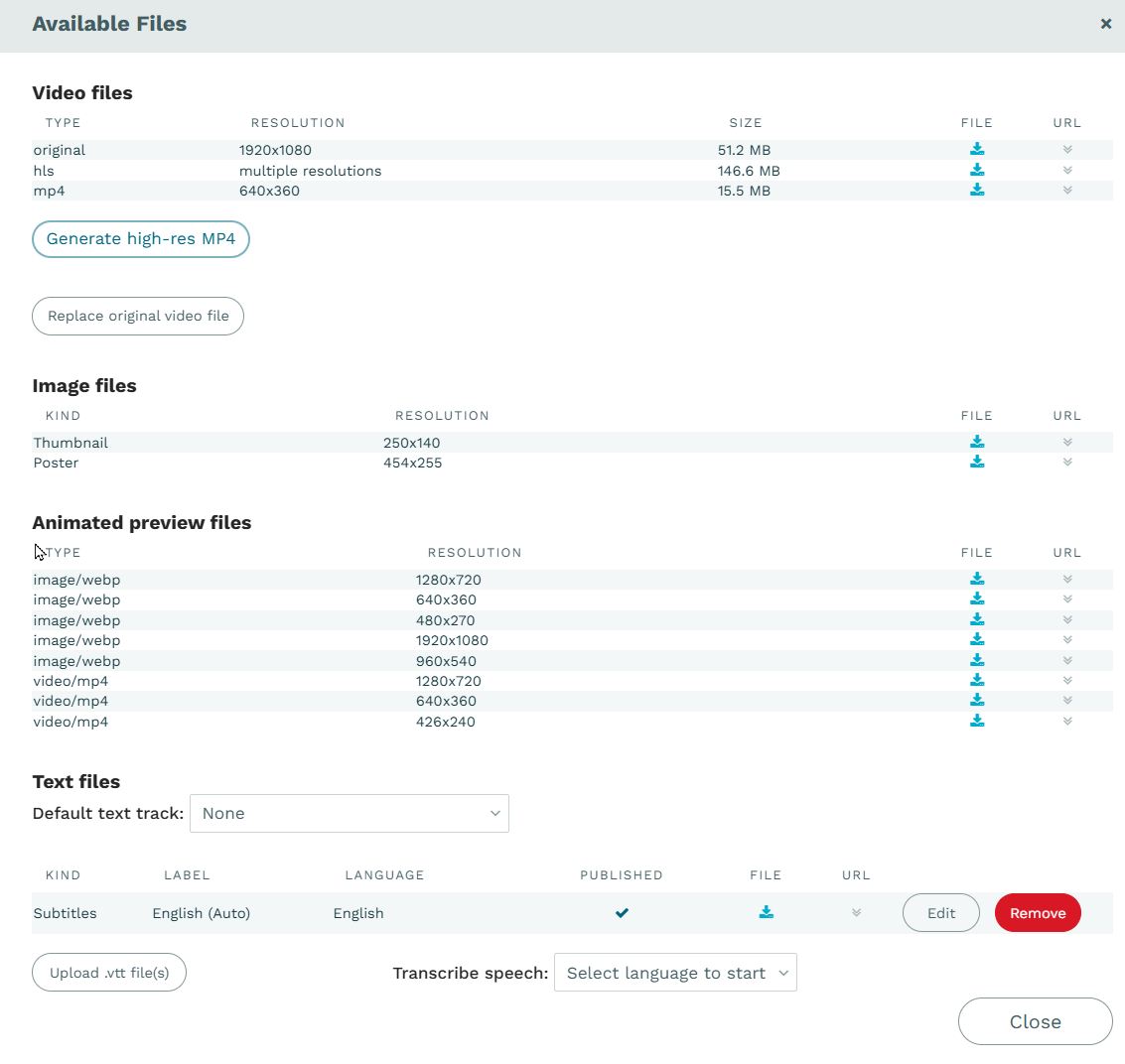
Furthermore, you can perform the following actions:
-
replace videos: change the content for an existing asset while preserving the embed code / mediaid.
-
add and change subtitles: upload WebVTT subtitle tracks and edit their
languageandkindattributes. Publish or unpublish them. To edit subtitles, chapters or ad insertion points, use the Edit chapters, subtitles and ad positions action item. -
manually start a transcription: trigger an AI audio-to-text transcription for an already uploaded video. Feature available for Enterprise customers.
-
generate a high-resolution MP4 on demand. This will build an
MP4from the highest available transcoded rendition of theHLSencoding.
-
Create a shorter clip from a video, or stitch (combine) several videos into one.
-
Change poster: switch the poster to an existing image created by the platform on creation, upload a new one or pick from the image gallery.
-
Create or edit the animated preview.
Metadata and Analytics
Underneath the preview and action elements, you'll see tabs for metadata and analytics. Learn more in the respective sections:
Exporting an MP4 with the Platform API
An MP4 can also be generated with the Platform API using POST /v3/videos/{id}/mp4-exports:
- The video must already be encoded. The MP4 is remuxed from the highest-resolution existing
HLSrendition. notification_email: optional email address that is notified when the export is ready.- Completion can also be detected with the
VIDEO_UPDATEDwebhook or by fetching the video again withGET /v3/videos/{id}and checking itsencodings.