Table of contents
Advanced Playback Token Authentication
Advanced playback tokens in Flowplayer OVP secure video and livestream playback with signed tokens based on the Common Access Token (CAT) standard, which you generate and pass to the player.
This guide walks you through securing video or livestream playback using token-based authentication. You'll create a signing key, generate a playback token, and embed it in your player.
Playback tokens are based on the Common Access Token (CAT) standard and use claims to control what the token permits - which media assets it covers, how long it's valid, and more (see the token claims reference for a full list of claims).
Note This is only needed for assets configured with Advanced Token, if an asset is configured to use Basic Token, the embed codes will automatically contain a valid token.
Prerequisites
- An active OVP account
- Your OVP API key (
x-flowplayer-api-key)
OVP configuration
Configuration for the asset is simple: just access the Metadata tab of any video or livestream and select Advanced token . If you set a default token behavior in your workspace settings, you can also select follow default for existing videos or livestreams. Videos or livestreams created after you set the default will follow the setting, unless you choose a different option.

Default Configuration
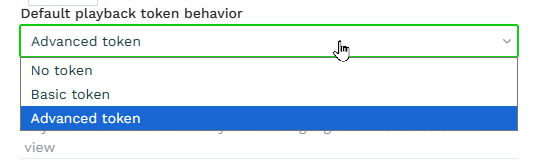
Setting Up Advanced Tokens
Step 1: Create a Playback Token Key
Before generating tokens, you need a signing key. If you don't have one yet, use the following endpoint to create one:
curl -i -X POST 'https://api.flowplayer.com/platform/v3/playback_tokens/keys' \
  -H 'x-flowplayer-api-key: <your-api-key>' \
  -H 'Content-Type: application/json' \
  -d '{
    "name": "my-new-playback-token-key"
  }'
A successful response looks like this:
{
  "id": "bc57109d-af9e-4070-8a53-3d5e3998f7bf-7148f",
  "name": "my-new-playback-token-key",
  "value": "esddsdsa5b72aab09e28a8c18e9c79c38c616a91f78646f8ded5ff1ab45f",
  "site_group_id": "bc57109d-af9e-4070-8a53-3d5e3998f7bf",
  "created_at": "2026-02-22T12:39:30+0000"
}
Note the following fields — you'll need them in the next step:
-
- Field
- Also known as
- Description
-
idkidorkey_id- Key ID, used to identify the key when generating tokens
-
valuekey- The secret used to sign tokens — store this securely
API reference: Create Playback Token Key
Step 2: Generate a Playback Token
There are two ways to generate tokens: using the OVP API, or hosting your own token generation service.
Option A: OVP API
Use the kid from Step 1 in the request body and specify access restrictions on the token (see API reference Create Playback Token available restrictions).
curl -i -X POST 'https://api.flowplayer.com/platform/v3/playback_tokens' \
  -H 'x-flowplayer-api-key: <your-api-key>' \
  -H 'Content-Type: application/json' \
  -d '{
    "key_id": "<your-kid-from-step-1>",
    "catu": {
      "3": [3, "<your-video-id>"]
    }
  }'
Example of restricting a token to a single video
The catu claim limits playback to files whose path contains a specific video ID. This prevents a token issued for one video from being used to access another:
"catu": {
  "3": [3, "<your-video-id>"]
}
Replace <your-video-id> with the ID of the video asset you want to protect.
Option B: Host Your Own Token Generation Service
You can also build and host your own Common Access Token generation service — several open-source starting points are available. This is recommended if you want individual tokens per viewer, as the API in Option A is rate limited.
Step 3: Add the Token to Your Embed Code
Once you have a token, pass it to the player via the playback_token option:
<div id="player-[assetid]"></div>
<script type="module">
  import flowplayer from "https://embed.flowplayer.com/[playerid]/[assetid].js";

  flowplayer("#player-[assetid]", {
    playback_token: "<your-generated-token>"
  });
</script>
Replace <your-generated-token> with the token returned in Step 2.
Token claims reference
Playback tokens are based on the Common Access Token (CAT) standard. Claims let you control what the token permits — which assets it covers, how long it's valid, and more.
For a full list of supported claims and their syntax, OVP Create Playback Token API Reference.