Archiving videos
Flowplayer OVP can move the files of videos that haven't been watched for a long time to a low-cost archive storage, so that rarely viewed content doesn't take up full-price storage. An archived video stays playable in a reduced quality, and the full-quality video is restored automatically as soon as somebody watches it. You can also restore a video manually at any time. Archiving is off by default. You enable it per video, or as a default for all new videos in a workspace.
Table of contents
How archiving works
When archiving is enabled on a video and the video hasn't been viewed for about 180 days, its files are moved to the archive storage, except for one rendition which stays available for playback:
- The platform keeps the 540p rendition. If there is none, it keeps the largest rendition below 540p; if all renditions are larger than 540p, it keeps the smallest.
- All other renditions, the MP4 files and the original source file (if it is kept) are archived.
The poster, thumbnails, animated previews, subtitles and chapters are not affected; they stay available.
An archived video keeps its media ID, so existing embed codes and share links continue to work. Viewers see the video in the reduced quality until it is restored.
Restoring a video from the archive takes up to 12 hours. During that time the video stays playable in the reduced quality.
A video is in one of the following archive states:
-
- State
- Meaning
-
- Available
- All files are available. This is the normal state of a video.
-
- Archived
- The files of the video, apart from the kept rendition, are in the archive storage. The video plays in reduced quality.
-
- Restoring
- A restore has been started. The video plays in reduced quality until the restore is finished, which takes up to 12 hours.
The 180 days are counted per file from the last time it was used, and the move itself can take a few more days.
Enabling archiving
For all new videos in a workspace
Check Enable archiving on new videos in the Workspace settings. Every video uploaded or created in the workspace after that will have archiving enabled.
Videos that already exist in the workspace are not changed. You can enable archiving for them one by one in the video metadata.
For a single video
Open the video details, switch to the Metadata tab and check Enable archiving. Uncheck it to exclude a video from archiving, for example for content that must always be available in full quality right away.
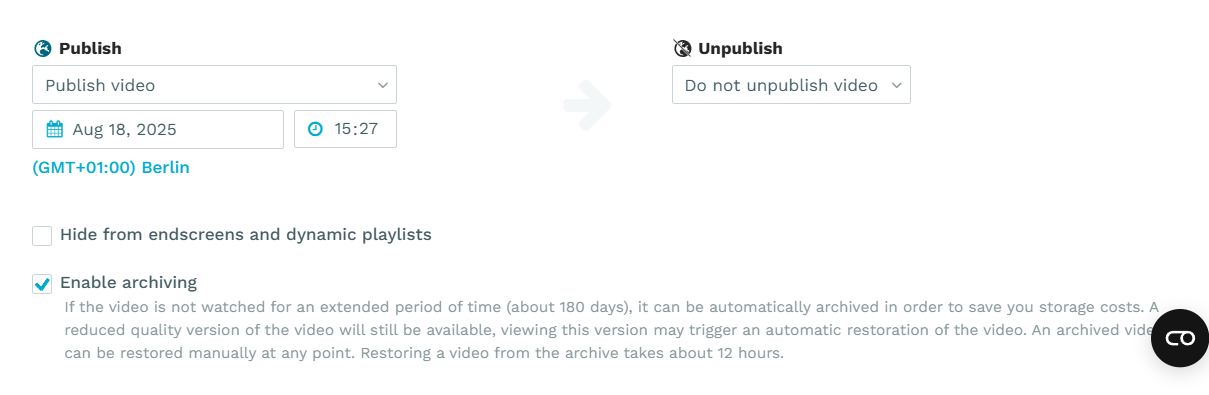
Unchecking Enable archiving on a video that is already archived starts a restore of the video.
With the Platform API
Set archive_enabled to true or false when you create or update a video with the Platform API. If you don't set it on creation, the video takes the default of its workspace.
PUT /v3/videos/{id}
{
  "archive_enabled": true
}
Which videos can be archived
Archiving is available for videos hosted and encoded by Flowplayer OVP in workspaces with a CMAF encoding profile. The following assets are never archived, even if archiving is enabled on them:
- remote videos, as their files aren't stored on the platform
- audio-only assets
- shallow copies of videos from another workspace: a shallow copy plays the files of its original, so it follows the archive state of the original video. Watching a shallow copy does not start a restore; restore the original video, or restore the copy manually.
- videos which are part of a simulated live stream that hasn't finished yet
What viewers see
Viewers of an archived video don't need a new embed code or link. The player receives the kept rendition only and plays the video in that quality. The quality selector will not be available until a restore is done.
Watching an archived video automatically starts a restore of the HLS renditions. After the restore has finished (up to 12 hours later), the full set of renditions is available again and viewers who start the video from then on get the full quality.
Direct links to the MP4 files of an archived video (for example from the Manage files dialog, or a progressive MP4 source in a self-hosted player) stop working while the MP4 files are archived. The MP4 files are only restored when they are needed, see Restoring the MP4 files below.
Archived videos in the web app
Archived videos are marked with an Archived label in the Videos list and in the header of the video details. While a restore is running, the label reads Restoring.
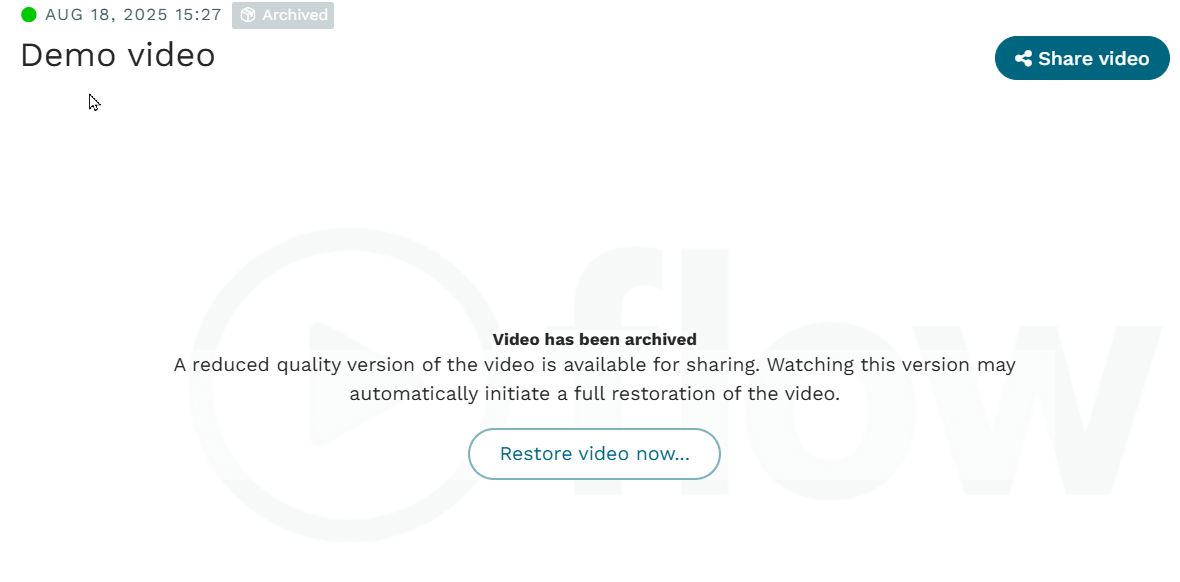
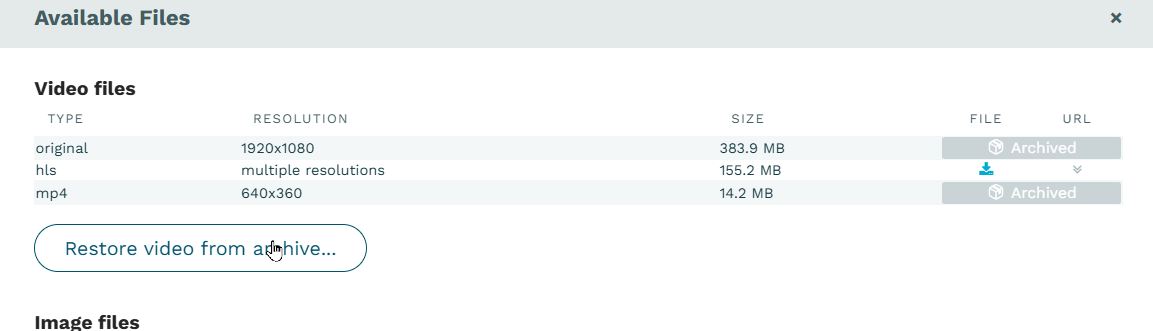
The preview player in the video details doesn't play an archived video right away, because watching the reduced-quality version would start a restore. Instead it shows a Video has been archived message with a Restore video now… button. While a restore is running, you can click Watch reduced quality version to preview the video anyway. In the Manage files dialog, archived files are marked Archived instead of showing their download link and URL. The dialog also holds the Restore video from archive… button.
The following actions need the archived files and are not available while a video is archived or restoring. Each of them tells you that the video must be restored first:
- Create clip, and adding an archived video to the reel of the clip editor
- Edit chapters, subtitles and ad positions, as well as uploading or deleting subtitle tracks and starting a transcription
- creating a new animated preview
- generating a high-resolution MP4 and replacing the original video file
- copying the video to a workspace which copies the video files instead of creating a shallow copy
- using the video in a simulated live stream Changing the metadata, the poster, publish settings, geoblocking and other settings of an archived video works as usual.
Restoring a video
Automatically
A restore of the video renditions starts automatically when:
- A viewer watches the archived video.
- The video is used in a simulated live stream that starts within the next 48 hours. Please note the check for scheduled simulives runs once per day, so schedule the simulive well ahead.
- You uncheck Enable archiving on the video, or set
archive_enabledtofalsewith the API. - You start an action which needs the archived files, such as creating a clip (the action itself is refused until the restore has finished, see above).
Manually
To restore a video manually, select it in the Videos list, click Manage files and then Restore video from archive…. Alternatively click Restore video now… in the preview player of the video details. Confirm the restore in the dialog. The video switches to the Restoring state and is fully available again within 12 hours. Restoring a video doesn't change its Enable archiving setting: its files are archived again after another 180 days without use.
There is no dedicated restore call in the Platform API. To restore a video with the API, set archive_enabled to false with PUT /v3/videos/{id}. This restores the video and excludes it from archiving. If you want the video to be archived again in the future, set archive_enabled back to true once the restore has finished.
Restoring the MP4 files
The MP4 files and the original source file of a video are tracked separately from its renditions. They are not restored when a viewer watches the video, only when they are actually needed:
- restoring a video manually restores the renditions and the MP4 files
- generating a high-resolution MP4, replacing the original video file from the existing files, and copying the video files to another workspace start a restore of the MP4 files, and are refused until the restore has finished
When only the MP4 files of a video are archived, the Manage files dialog offers Restore archived encodings… to restore them.
Archive state in the Platform API
The video resource of the Platform API contains the following read-only fields:
-
- Field
- Meaning
-
archive_status- Archive state of the video renditions:
AVAILABLE,ARCHIVEDorRESTORING.
-
mp4s_archive_status- Archive state of the MP4 files and the original source file:
AVAILABLE,ARCHIVEDorRESTORING. The files can only be downloaded while it isAVAILABLE; the URLs are always returned.
-
archive_taggedtruewhen the files of the video are marked for archiving, so they will be archived after a prolonged period without views. It can differ fromarchive_enabled, for example a video that isn't encoded to CMAF (i.e. HLS MPEG-TS) keepsarchive_taggedfalseeven with archiving enabled.
-
encodings[].availablefalsefor an MP4 file or the original while the MP4 files are archived or being restored.
Every change of archive_status or mp4s_archive_status triggers a VIDEO_UPDATED webhook event, so you can be notified when a video has been archived or when a restore has finished. Webhooks need to be enabled and an endpoint must be configured.
API operations which need archived files, such as creating an MP4 export or clipping, answer with HTTP status 423 Locked and start the restore. Repeat the request after the restore has finished:
{
  "message": "input validation failed",
  "errors": [
    {
      "property": "video_id",
      "message": "video '3afc64ea-fe85-456c-b9d7-6d1de8350ff2' is archived; a restore has been started, retry in up to 12 hours"
    }
  ]
}
While a restore is already running, the request is also refused with 423 and the message reads "video '