Table of contents
Clipping & stitching
The clip editor in Flowplayer OVP lets you trim an uploaded video, cut a shorter clip out of it, or stitch (combine) several videos into a single video.
Clips from livestream recordings are created with the same editor. See Recording & clipping for livestream-specific details.
Options available for clipping videos
When you edit videos in the clip editor, you make two choices: how precisely the video is cut, and where the result is saved.
-
- Option
- What it does
- Re-encoding
- Typical use
-
- Quick mode
- Cuts along the existing video segments
- No
- Fast, inexpensive trims where frame accuracy is not needed
-
- Precise mode
- Cuts at individual frames
- Yes, with additional encoding time and cost
- Frame-accurate edits, or stitching videos that can't be combined in Quick mode
-
- Clip as new video
- Creates a new video asset; the original stays unchanged
- Depends on mode
- Highlights, teasers, excerpts, compilations
-
- Clip video
- Replaces the original video with the edited version and keeps its media ID
- Depends on mode
- Trimming an uploaded video in place without changing existing embeds
Requirements
The Create clip action is available in the video details view, except for:
- remote videos
- audio-only assets
- videos copied from another workspace (technically it works, but the clip will still be treated as a shallow copy)
- videos that are still uploading or encoding
Archived videos must be restored before they can be clipped. Clipping also requires an HLS encoding of the video. If a video doesn't have one, re-upload it so that an HLS version can be generated.
Opening the clip editor
Select a video in the Videos list to open its video details and click Create clip below the preview player, or press E.
The editor opens with the selected video already on the reel. The editor has the following components:
- Quick Mode | Precise Mode selection in the editor header
- Add Videos button, which opens a searchable list of the videos in your workspace
- Reel with the selected videos
- Preview player
- Trim tool, with zoom and focus controls
- Close, Clip video and Clip as new video buttons
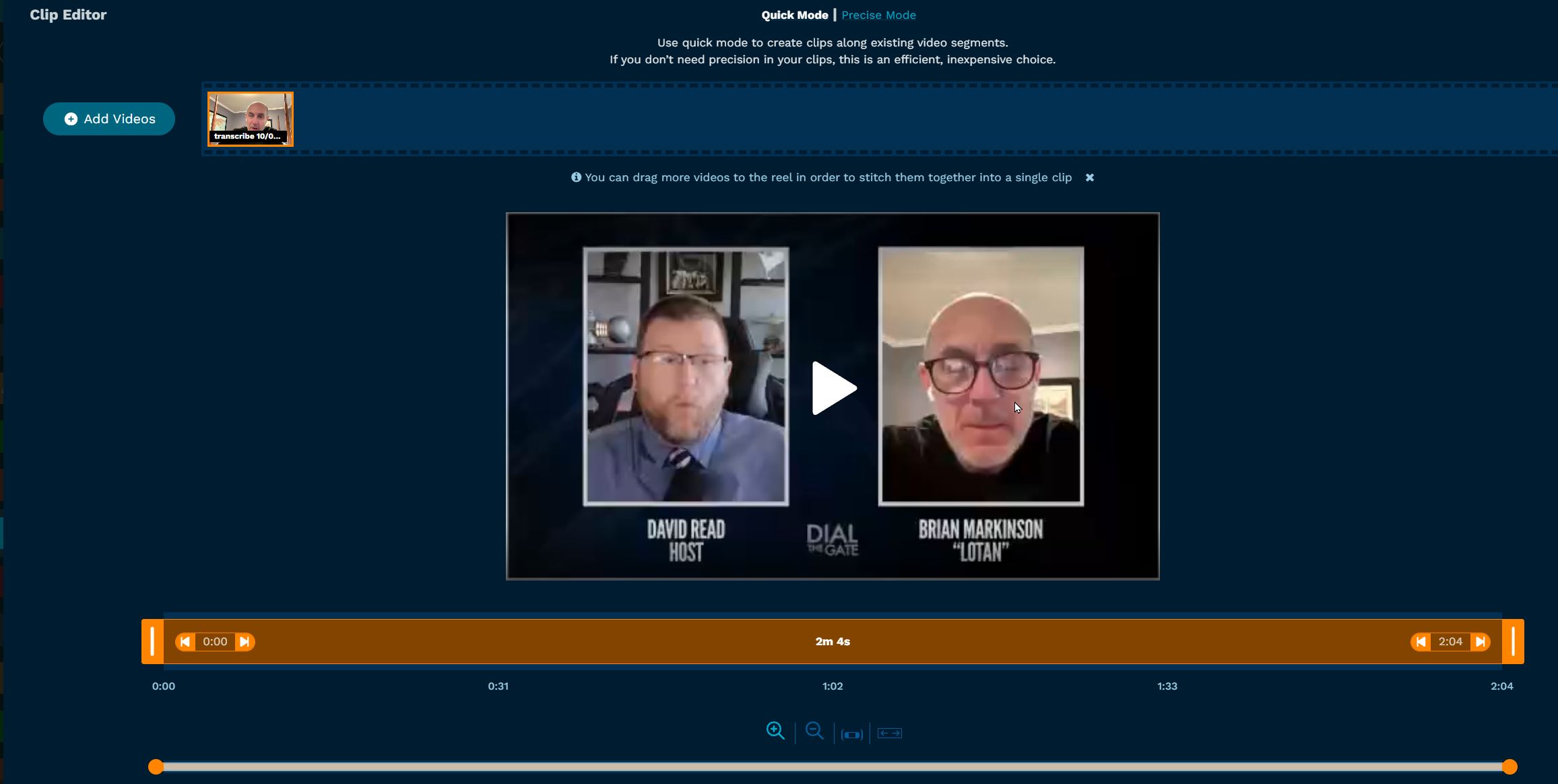
Quick mode and Precise mode
Choose the mode in the editor header. The editor opens in Quick mode.
Quick mode creates clips along the existing segments of the video. Trim points snap to segment boundaries, so the clip may start or end a few seconds away from the exact frame you picked. Since no re-encoding is needed, the result is available quickly and this is the most efficient, inexpensive choice.
Precise mode lets you choose individual frames as start and end points. The resulting video is re-encoded, which takes additional encoding time and cost.
Quick mode is unavailable, and the editor switches to Precise mode, when:
- the video can't be cut along its segments, or
- the videos on the reel differ in their audio setup (for example, one has additional audio tracks or no audio) or video format, so they can't be stitched without re-encoding.
Hover over the greyed-out Quick Mode label to see the reason. If you switch from Precise mode back to Quick mode, existing trim points move to the nearest segment boundary.
Trimming a video
Select a video on the reel by clicking it. Use the preview player to find the start and end points of the part you want to keep.
The trim tool below the preview player shows the timeline of the selected video. Drag the handle on the left to set the start point and the handle on the right to set the end point.

You can also play the video in the preview player and press Alt + I to set the current position as start point or Alt + O to set it as end point. It's also possible to set the points by editing their timestamps manually.
For more precision, especially in longer videos, you can zoom in on the timeline and focus on parts of it. Using the zoom action buttons, you can zoom in on the timeline (1), zoom out on the timeline (2), zoom and focus on the currently set trim region (3) and zoom out completely to show the full timeline (4).
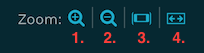
Below the controls, a bar represents the currently visible part of the timeline. Resize it with its handles to zoom in and out, or drag it to focus on a different part of the timeline.
While moving the bar left and right with your pointer, you can simultaneously move your pointer up to zoom in or down to zoom out.
Stitching several videos
To combine several videos into one, click Add Videos to open the list of videos in your workspace. Search for a video and drag it onto the reel. Drop it before, between or after the videos that are already there.
- Drag videos on the reel to change their order. The videos are stitched together in the order they are arranged on the reel, from left to right.
- Each video on the reel can be trimmed individually: select it and set its start and end points as described above.
- Click the trash icon on a video to remove it from the reel.
- Click Close list to hide the video list again.
Archived videos can't be added to the reel. Videos that differ in audio setup or video format can only be stitched in Precise mode.
Saving the result
When the reel contains the videos and trim points you want, choose how to save the result.
Clip as new video
Click Clip as new video to create a new video asset and leave the original video(s) unchanged. A form opens with the following fields, pre-filled from the video you opened the editor from:
- Name
- Description (optional)
- Tags
- Category
- Publish time
- Hide from endscreens and dynamic playlists
Click Create clip to start processing. The new video is listed in the Videos view as soon as it's ready.
Clip video (replace the original)
Click Clip video to replace the original video with the edited result. This is how you trim an uploaded video in place, for example to remove a slate at the beginning or unwanted content at the end.
The video keeps its media ID and its metadata, such as name, description, tags, category and publish settings. All embeds using the OVP IDs (with the OVP-managed player or the platform integration plugin) play the edited version without needing to be re-embedded.
Replacing a video can't be undone. If you need access to the original version, make a copy of the video before you click Clip video and confirm the action.
When the original video is replaced, content that is tied to the old timeline is removed:
- Animated preview
- Chapters and ad insertion points
Recreate them if needed when the edited video is ready. Subtitle tracks are kept and adjusted, but it is a good idea to check them, and edit in the subtitle editor if needed.
In Precise mode, the edited video is re-encoded. During encoding, viewers may see a "We're processing this video" message, as when replacing a video file.
Keyboard shortcuts
Use these shortcuts in the video details view and the clip editor:
E(in the video details view): Open the clip editorAlt + I: Set the start trim point at the current preview playback pointAlt + O: Set the end trim point at the current preview playback pointI + Click (on the timeline): Set the start trim point at the point clicked on the timelineO + Click: Set the end trim point at the point clicked on the timelineDouble-click (on the timeline but outside the trim region): Set the closest trim point (start or end) at the clicked pointClick (within the trim region): Move preview playback pointSpace: Toggle preview playbackLeft-arrow/Right-arrow: Step preview playback point back / forward (by one segment in Quick mode)Shift + Left-arrow/Shift + Right-arrow: Step preview playback point back / forward ten times as farCmd/Ctrl + Left-arrow: Move preview playback point to start trim pointCmd/Ctrl + Right-arrow: Move preview playback point to end trim pointAlt + Click (on the timeline): Zoom inAlt + Shift + Click: Zoom outAlt + Z: Zoom inAlt + Shift + Z: Zoom outAlt + S: Zoom and focus on the currently set trim regionAlt + A: Zoom out completely to show the full timelineEscape: Close the Clip as new video form or the Clip video confirmation
Clipping with the Platform API
Clips and stitched videos can also be created with the Platform API using POST /v3/clipping:
clips: one or more source videos, each withid,asset_typeset toVOD, and optionalstartandstoptimes inHH:MM:SS:FFformat (hours, minutes, seconds, frames). Ifstartorstopis omitted, the clip starts at the beginning or runs to the end of the video. The clips are stitched together in the order given.mode:QUICK(cuts at segment boundaries) orPRECISE(frame-level cuts).replace_video_id: the ID of an existing video to replace with the result. This is equivalent to Clip video in the editor. If omitted, a new video is created.- Metadata for a new video, such as
name,description,tags,category_id,publishedandpublish_date.
{
  "mode": "PRECISE",
  "name": "Highlights",
  "clips": [
    { "id": "<video-id-1>", "asset_type": "VOD", "start": "00:00:10:00", "stop": "00:01:30:12" },
    { "id": "<video-id-2>", "asset_type": "VOD", "start": "00:05:00:00" }
  ]
}